Shadowrocket
Official Download & Purchase
A paid app, sold as a one-time purchase exclusively on the App Store. This page covers how to verify the listing, purchase and install the app, and restore it on a new device. To connect, use subscription or server details you already have.
- Shadow Launch Technology Limited
- App ID
932747118 - $2.99 one-time purchase; price varies by storefront
- For iPhone and iPad
Check the App Store page for system requirements and universal purchase eligibility. The App Store button opens in a new window.
Check your Apple ID storefront
Shadowrocket isn’t available on the mainland China storefront. App Store availability depends on the country or region associated with the Apple ID used for purchases—not just your device’s location, system language, or the link you open. The button above opens the US product page, but visiting it won’t switch your account’s storefront. Even if the page loads in a browser, the App Store may still show that the app isn’t available in your current storefront.
Check the account used for Media & Purchases, not just the account name at the top of Settings. The iCloud account on your device and the account used for App Store purchases may differ; the purchase is tied to the latter. Confirm which account is in use, then check its country or region. This helps avoid mistaking an available web product page for proof that you can buy the app in your current storefront.
Where to check or change your region in Settings
- Open Settings on your device, then tap your Apple ID account at the top.
- Tap Media & Purchases, choose View Account, and complete any requested authentication.
- Tap Country/Region to view your current storefront. To make a change, use the Change Country or Region option on that page.
- Review the listed requirements. Check your balance, active subscriptions, Family Sharing group, and payment information before deciding whether to continue.
Menu names may vary slightly depending on your system language; follow the equivalent options. Changing your region can affect account services and payment requirements, so don’t switch regions repeatedly just to change search results. If the system asks you to resolve an account requirement first, review the message before proceeding. Whether you can change regions depends on your account status and the system prompts at the time. This manual explains where to check; it doesn’t provide accounts.
If you’ve confirmed the region and availability but still can’t find the app, use the product button on this page to open the listing, then verify the developer and App ID. If you see a payment, compatibility, or account restriction message, keep its exact wording and check the relevant requirement rather than repeating the same search. For more details, see the storefront region section of the official guide.
Check the developer, icon, and App ID
Search result ranking isn’t a reliable way to identify Shadowrocket. Apps with similar names or keywords may appear in results, so verify these three details on the actual product page before purchasing. Checking them before you pay is more reliable than judging an app by its interface colors after installation.
Developer
The developer on the product page should be Shadow Launch Technology Limited. Open the relevant product information and check the full spelling in the developer field. A mention in the description doesn’t establish the developer’s identity. Similar names or page text mentioning Shadowrocket are no substitute for verifying this field.
Official icon
The official icon is a rocket outlined in blue and purple on a white background, matching the icon in this checklist. Compare the artwork itself, not the rounded outer shape or how large it appears on your device. The icon is one clue; verify it alongside the developer name and App ID, rather than relying on it alone.
App ID
Shadowrocket’s App ID is 932747118; the corresponding part of the product URL is id932747118. Display names can look similar, but the App ID identifies the specific product. Check all the digits, and don’t rely on a page title, search snippet, or description from another page instead of the product URL.
Once all three details match, review the price, compatibility, and purchase requirements on the current App Store page. If anything doesn’t match, stop and reopen the product page linked from this manual. Verifying the product and checking whether your account is eligible to buy it are separate steps. An official listing doesn’t mean every storefront or device meets the purchase and installation requirements.
Recognizing the interface after installation
The following are official App Store screenshots uploaded by the developer. Use them to identify the names and layout of Home and Add Server; the current app may look different.
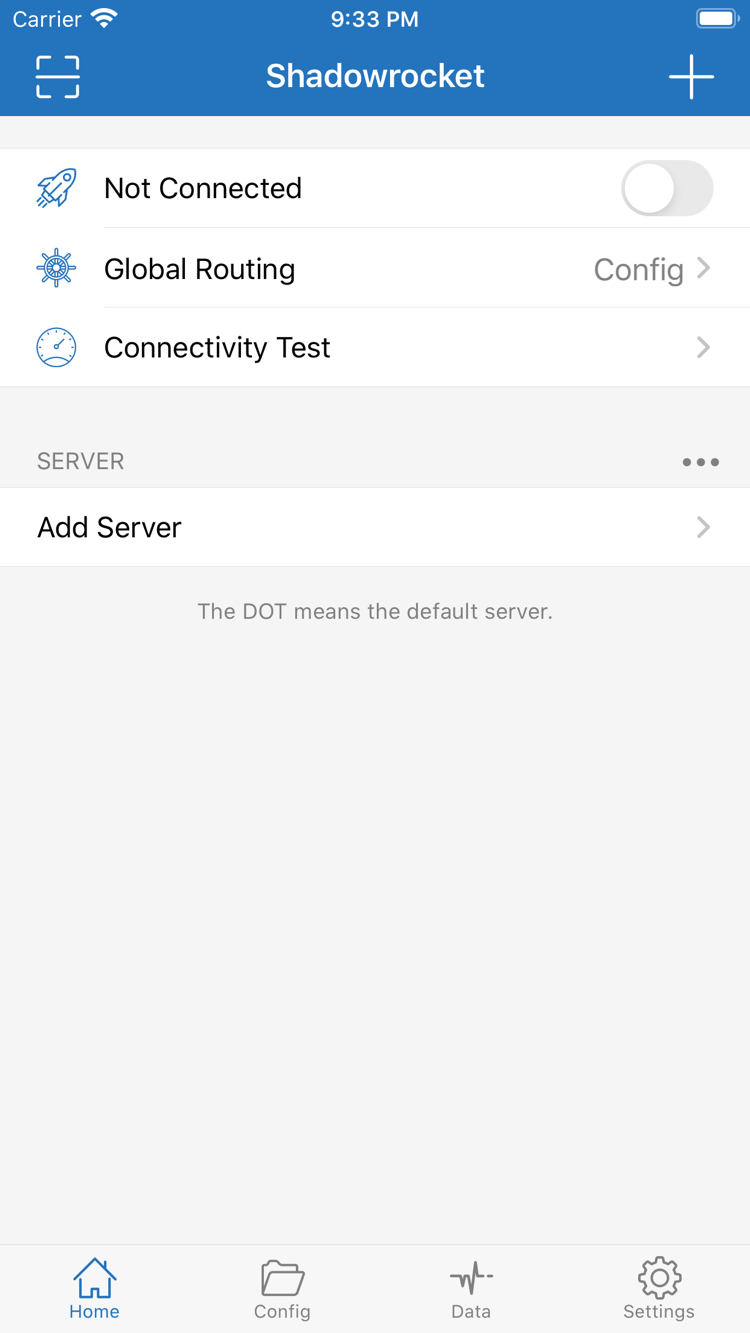
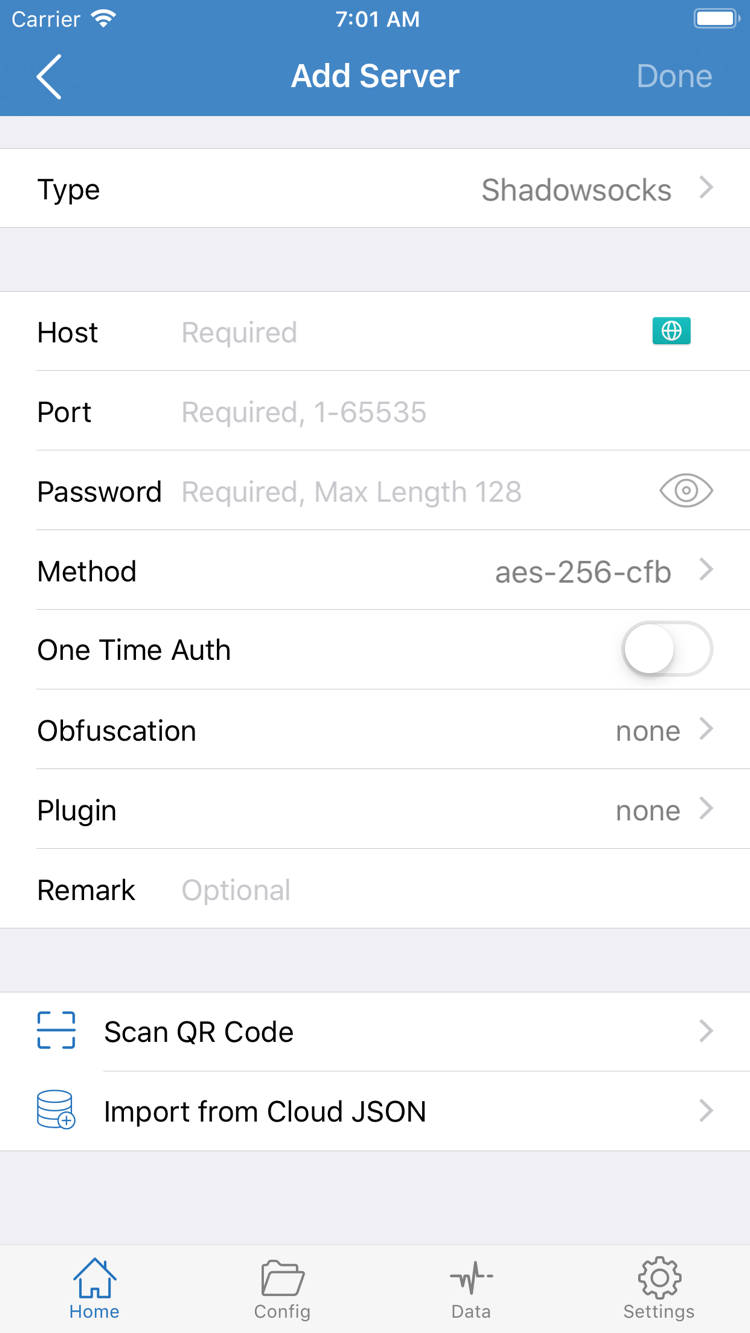
Screenshots are for identifying interface elements, not configuration examples. Server addresses, authentication details, and protocol settings should come from server information you already have.
Complete your App Store purchase, then review the first connection authorization
On iPhone, confirm the product, account storefront, and current price before completing the purchase through the App Store. Refer to the product page for system requirements and compatibility before installing; don’t treat a screenshot or an older system requirement as permanently current. Check available storage before buying too, so low storage isn’t mistaken for an account or product issue.
Purchase confirmation and app download are related but separate steps. After payment is complete, the App Store handles the download. If it pauses or remains pending, check your network connection and the App Store message. If payment is confirmed, don’t confirm it again just because the download is waiting. First check the purchase history or purchases on your account, then troubleshoot the download.
First launch and VPN configuration prompt
Seeing Not Connected on Home the first time you open the app doesn’t mean installation failed; it means no connection is active yet. Installing the app doesn’t provide a server. Import a subscription or server details you already have using Subscribe or Add Server, then review Global Routing settings.
When an action such as enabling a connection requires a VPN configuration, the system may ask to add one and authenticate on the device. This authorizes the connection configuration; it’s separate from confirming an App Store purchase. Make sure the prompt matches the action you just took, then follow the system steps to authorize it. If you cancel, you may need to trigger authorization again before connecting.
Authorization allows the app to establish the corresponding connection, but it doesn’t verify your server details. If you still can’t connect, check the imported information, selected server, and routing mode, then run Connectivity Test. See the setup guide for the recommended order. Repeated purchases or installations won’t resolve connection issues.
Use the same purchasing account to get the app on iPad
Shadowrocket is available for both iPhone and iPad. If you purchased it on iPhone with an Apple ID, sign in with that same ID on a compatible iPad, then find Shadowrocket under your App Store account and purchases to download it again. Check the App Store page for system requirements and universal purchase eligibility. Verify the purchasing account first so you don’t confuse it with the iCloud account currently on the device.
The larger iPad screen may display lists and settings differently, but interface labels such as Home, Add Server, Config, and Settings remain useful landmarks. Don’t look for an option based only on its position in a tutorial screenshot; check its name and purpose. After importing, confirm which server and configuration are selected rather than assuming the selection will carry over from another device.
Purchase eligibility and configuration data serve different purposes: the former determines whether you can restore the app from the store; the latter determines how the app handles connections. Even when both devices use the same purchasing account, check subscriptions, servers, Config, and system authorization on the new device. If you migrated or restored a backup, verify each item in case server details have changed.
Mac, Apple TV, and Apple Vision
The compatibility section on the same App Store product page lists Mac, Apple TV, and Apple Vision. Check the page for supported devices, system requirements, and whether the purchase is universal. Get the app through the App Store on these devices as well. The detailed first-connection steps in this manual focus on iPhone and iPad, so the interface locations may differ on other devices.
Before using Shadowrocket on another Apple device, open its App Store and check the product page and compatibility section. Then verify the purchasing account and download button. If the button or a message differs from what you expect, use the current page to investigate; a successful installation on iPhone doesn’t prove purchase or usage eligibility on every device.
Restore Shadowrocket from your purchases
If you get a new device or reinstall the app, first check the Apple ID used for the original purchase. Purchases are tied to the App Store account—not the device’s appearance, displayed phone number, or the fact that the app used to be on its Home Screen. Sign in with the original account to download Shadowrocket again at no extra cost if the purchase is eligible. Check current storefront availability and device compatibility as well.
- Open the App Store on your new device, go to your account, and confirm which Apple ID was used for the purchase.
- Go to Purchases. Depending on the system interface, this option may appear under an app-related or purchase-related list.
- Find Shadowrocket, verify the product, and tap the button to download it again.
- After installation, open Home and check your servers, subscriptions, and Config. If needed, import details you already have, then confirm connection authorization.
If the app isn’t listed, first check whether you’re signed in with a different purchasing account or filtering the list. Then check your purchase history, hidden purchases, and current storefront availability. If the page shows a price again, confirm which account made the purchase before paying again. For account restoration or billing issues, follow the specific App Store message. Keeping its exact wording makes it easier to identify the problem than simply saying the app won’t install.
Restoring the app doesn’t restore connection details
Restoring from Purchases brings back the app itself. Check separately whether server information, subscription URLs, rule files, and selection state were transferred or restored from a backup. If the SERVER list is empty on the new device, import subscription or server details you already have; an empty list doesn’t mean the purchase is invalid.
Before changing devices, organize the sources and essential details for configurations you already have, and store them somewhere you control. Subscription URLs may contain access credentials, so redact them when troubleshooting or sharing screenshots. If the old device still works, import and verify everything on the new one before clearing data from the old device. This can help avoid repeated troubleshooting when information is missing.
Family Sharing eligibility
Whether Family Sharing applies to your purchase and whether family members can get the app depend on the App Store listing and the conditions shown for the accounts at the time. Family group settings, purchase sharing, and each member’s storefront may affect eligibility; check the relevant App Store information first. Shared purchase eligibility and personal server details are separate: access to the app doesn’t include connection details.
The one-time purchase is for the app
Shadowrocket is a closed-source commercial app sold as a one-time purchase. The US storefront price is approximately $2.99; prices are shown in local currency and the actual amount is the one displayed on the App Store page at checkout. One-time purchase means there’s no recurring monthly fee for the app itself. The reference price may differ from the final price in other regions.
Before paying, check the price shown in your current storefront, confirm the payment account and payment method, and verify the product name in the system purchase prompt. To review a charge or purchase status afterward, use your App Store account and purchase history. If you have a question about billing or purchase status, follow the order details and steps shown by the system; connection success doesn’t prove that a purchase is complete.
Check the store purchase and app connection separately. For a purchase, verify the product, payment, and purchase history. For a connection, check that your existing details are complete and imported correctly, and that the selected configuration and routing method are appropriate. If the app opens from your Home Screen but you haven’t imported any details, it’s installed and ready to configure. You don’t need to buy it again.
Updates & continued use
App updates are delivered through the App Store. You can use automatic updates in your device settings or check the updates list in your App Store account. Refer to the product page for current update notes and compatibility; this manual doesn’t maintain a version or update-date list. If you rely on a particular configuration, check where it came from before updating, then review the relevant settings and connection behavior afterward.
If you see an expiration date or data-usage reading after a one-time purchase, check its source. It may reflect a service you already use, not how the app is purchased. Distinguish between your App Store account, app configuration, and existing service details so you can address purchase issues through the purchase process and connection issues through configuration troubleshooting.
Start by identifying the type of issue
Why can’t I find Shadowrocket on the App Store?
Shadowrocket isn’t available on the mainland China storefront. The country or region associated with your Apple ID determines what appears in the App Store; viewing the US product page on the web doesn’t change your account’s storefront. Check the account and country or region under Media & Purchases in Settings, then confirm availability in your current storefront.
The product page opens, but why can’t I download the app?
Note the exact App Store message, then check your account’s storefront, device compatibility, payment status, available storage, and network connection. Refer to the App Store page for system requirements. If the purchase is complete but the download button isn’t working, check your purchases and purchase history first to avoid confirming payment again.
Do I have to pay for Shadowrocket again when I get a new device?
Sign in with the Apple ID used for the original purchase, then find Shadowrocket under your App Store account and purchases. If the purchase is eligible, you can download it again at no extra cost. Restoring the app and restoring its configuration are separate: on the new device, check and import the subscription or server details you already have.
I bought it on iPhone. Can I install it on iPad too?
Shadowrocket is available for both iPhone and iPad. With the same Apple ID used for the purchase, you can download it from Purchases on a compatible iPad. Check the App Store page for system requirements and universal purchase eligibility. After importing your details, review the current configuration and connection authorization.
Can I use the same App Store listing on Mac, Apple TV, and Apple Vision?
The compatibility section of the same App Store product page lists Mac, Apple TV, and Apple Vision. Check the page for universal purchase eligibility, device support, and system requirements. Get the app through the App Store; an iPhone purchase alone doesn’t confirm eligibility on other devices.
How do I follow the manual when the interface is in English?
This manual keeps interface labels such as Home, Add Server, Global Routing, and Config in English, and explains what each action does in the text. Find the matching English label first, then read the relevant instructions. Official screenshots help identify the interface layout, which may vary in the current app. Check the app and device language settings if labels appear in a different language.