Shadowrocket Official Manual Get it on the App Store

Shadowrocket
Setup guide

Verify the App Store listing and set up a rule-based proxy client for iPhone and iPad, with rule-based routing and support for importing existing subscriptions. The app is a one-time purchase on the App Store; you’ll need your own server details or subscription before connecting.

  • Rules
  • Subscribe
  • On Demand
  • VMess / VLESS
Device compatibility

Check the same App Store product page for all devices. Refer to the listing for system requirements and purchase compatibility.

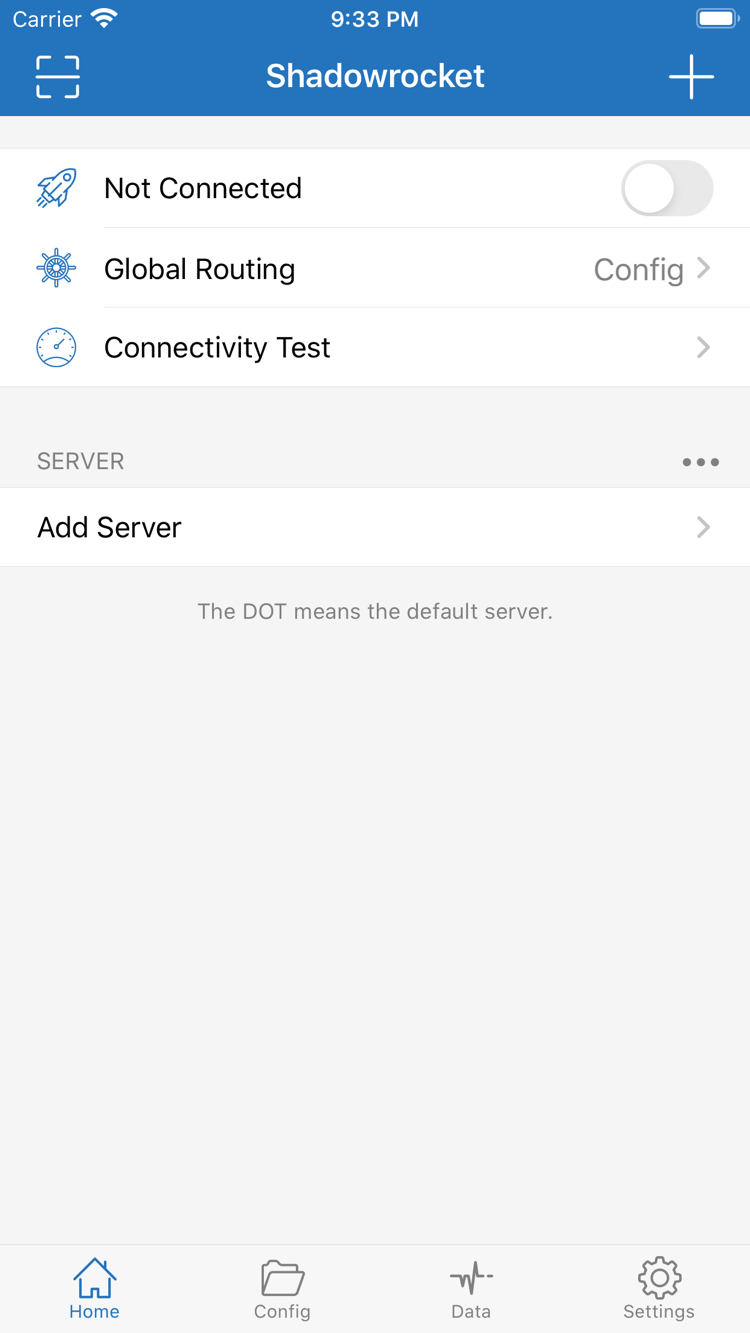
Official Shadowrocket Home screenshot: connection switch, Global Routing and Add Server
Official Home screenshot; layout may vary in the current app.
App Store and devices

Get Shadowrocket on iPhone and iPad

Shadowrocket is available only on Apple platforms, exclusively through the App Store. Before your first purchase, check whether the app appears in your current storefront, then verify the developer, icon, and app ID on the product page. The region in a web link may differ from the storefront used on your device. Check the App Store listing for purchase availability, currency, and device compatibility.

The download guide separates purchase from first launch: purchasing gets you the app, while connecting for the first time also requires existing server details and system authorization. If you’ve purchased Shadowrocket before, check your purchases rather than relying on the price shown in search results to decide whether you need to buy it again. Check the App Store listing for system requirements and purchase compatibility on both devices.

iPhone

Verify the listing and complete your purchase on the App Store, then open Shadowrocket. When you first enable a connection, iOS may ask to add a VPN configuration. Review the prompt, complete device authentication, then return to Home and check the connection status. System authorization lets the client establish a connection; it doesn’t provide a server address, password, or subscription.

Read the iPhone guide →

iPad

Check your purchase history using the Apple ID used for the original purchase, then get the app if the storefront indicates it’s available. A larger screen doesn’t change the import steps: check the server fields, select Global Routing, then connect. Getting the app and restoring its configuration are separate tasks; check that your existing configuration is saved before reinstalling.

Read the iPad guide →

Shadowrocket is also available for Mac and Apple TV through the same App Store listing. Check the listing for compatibility.

Settings and features

From Global Routing to rule-based routing

Servers, subscriptions, and configuration files serve different purposes. Server fields define how to connect to a remote server; subscriptions maintain an existing server list; configuration files determine how connections match rules. After importing a subscription, check the active configuration too. A server appearing in the list doesn’t mean the rules are active. The sections below explain each feature using the interface labels, so you can identify what to change before you start.

When troubleshooting, change one setting at a time. If you switch servers, change modes, and rewrite rules all at once, you won’t know which change fixed the issue. Start with existing information and a repeatable test. Record the selected server, Global Routing mode, and target domain to avoid unnecessary changes and false conclusions.

Choose a Global Routing mode

Check Global Routing on Home. Config uses the rules in the active configuration to handle connections; Proxy routes traffic through a proxy, while Direct connects without one. For domain-based routing, confirm the intended configuration is selected, then choose Config. Temporarily switching modes can help distinguish a rule issue from a server issue, but it won’t fix an incorrect address, password, or transport setting. After each change, test the same destination and restore your original setting when finished.

Global Routing: Config
  • Use rules
  • Run a temporary comparison test
  • Check the current mode
Read the full feature guide →
Quick start

Import, choose a mode, test the connection

These steps assume you already have your own subscription or server details. After purchasing the app, gather the address, port, authentication details, and protocol type. These come from your existing service; purchasing the client doesn’t generate them. If you don’t have these details yet, you can still review the interface guide. Don’t guess at settings just to switch on the connection.

For your first setup, keep one clearly identifiable test server and a verified configuration. Check the result at each step: review the fields after importing, confirm the active configuration after choosing a mode, and check actual requests after connecting. This helps distinguish missing imported details, an unsuitable mode, and an unreachable remote server instead of treating every failure as an installation problem.

  1. 01 · Add Server / Subscribe

    Import an existing server or subscription

    To add one server, select its Type in Add Server and enter the fields. For an existing subscription, select Subscribe, paste the complete URL, and save. After importing, check that the expected item appears in the SERVER group and verify Host, Port, and authentication details against your original information. Importing from a QR code or link saves typing, but doesn’t verify the settings.

    If the list is empty, first check whether the subscription is valid. If just one server fails, check its fields before resetting all settings. Redact subscription credentials and authentication details from screenshots; the protocol type and error are usually enough.

    View the import guide →
  2. 02 · Global Routing

    Check the mode and active configuration

    To handle requests according to rules, select Config and confirm on the Config screen that the expected file is in use. Proxy and Direct can be used for brief comparison tests, but interpret the results in the context of how you access the destination. For example, if a destination works with Direct, that only shows its direct route is available; it doesn’t confirm that the remote server is configured correctly.

    If the configuration includes policy names such as PROXY, check where each policy actually routes traffic. Seeing a rule doesn’t confirm that a request used the expected route. Check the selected server and match records too.

    View the mode selection guide →
  3. 03 · Home / Connectivity Test

    Connect and test actual access

    Return to Home, select the server you want to use, then enable the connection switch. On your first connection, follow the system prompt to add a VPN configuration and complete authentication. Then use Connectivity Test alongside an actual request to check the connection. A successful test is only one data point: confirm that your destination responds and that the current mode matches your intent.

    If the connection fails, check your local network, server fields, active configuration, and system authorization—in that order. Note where the error occurs, change one thing at a time, and test again. The system’s connection status and a successful request from a remote app are different outcomes; verify each separately.

    View connection testing and troubleshooting →
Keep the original configuration before testing changes

Save a copy of your original information before changing rules or server fields. example.com and the sample subscription URL in this guide illustrate formats only; they aren’t valid connection details. Each step assumes you’ve checked the result of the previous one.

Read the complete guide →
App Store purchase and authenticity

Verify the product page, then distinguish purchase from connection

Shadowrocket is a closed-source commercial app. This is the official Shadowrocket website and manual. App Store product pages are the source for purchase information, and interface terms are kept in English as they appear in the app. To identify the genuine app, check the developer, official icon, and app ID together. Don’t rely on a translated nickname, search ranking, or similar app name alone.

Purchasing, restoring, and using the app are connected but separate steps. The App Store confirms your purchase entitlement; your device handles installation and system authorization; the client uses your existing server details and configuration to manage connections. Completing one step doesn’t complete the others. Understanding the distinction helps you decide whether to consult the App Store guide or the connection tutorial.

Developer, icon, and app ID

Official Shadowrocket icon: white background with a blue-violet outlined rocket Shadow Launch Technology Limited
932747118

On the product page, confirm the developer is Shadow Launch Technology Limited and compare the white icon with its blue-violet outline. The product page URL should contain id932747118. Check all three: names can be similar, icons can look alike, and the app ID identifies the product at the link you’re viewing.

If the search result doesn’t match the product page details you expect, return to the fixed link in the App Store guide and check again. Review compatibility and pricing before purchasing, too. The app’s layout may change with updates, so refer to what’s currently displayed.

Check all three details →

Store region and app availability

Which apps appear in the App Store depends on the storefront region for your Apple ID. Shadowrocket may not appear in the mainland China storefront. This setting is separate from your device language and the language used to display a webpage. If search returns no results, check the country or region of the account you use for App Store purchases, then confirm whether the app is listed in that storefront.

Changing your region may involve account balance, active subscriptions, and payment methods. Review the requirements shown in your account settings first. Don’t repeatedly change regions just to try another search. Opening the US product page on the web doesn’t change the storefront account on your device; purchases are subject to the storefront and conditions shown in the App Store.

Read the storefront region guide →

One-time purchase and use on two devices

Shadowrocket is a one-time purchase. The US reference price is about $2.99; other storefronts show local currency, and the App Store listing at the time of purchase shows the actual price. Before confirming payment, check the app name, account, and price. The purchase is linked to the Apple ID used to buy it, not to any particular server details.

To use a purchase on both iPhone and iPad, check that you’re using the same purchase account and review device compatibility and the App Store listing. If another device shows a price, first check that it’s using the original purchase account and look under purchases. Check the same product page for Mac, Apple TV, and other device compatibility and purchase details; don’t infer purchase entitlements from a device name.

Check pricing and compatibility →

Restore on a new device and update through the App Store

When moving to a new device or reinstalling, sign in to the original purchase account in the App Store, find Shadowrocket under purchases, and get the app if it’s compatible with your device. If you can’t find it, check your purchase history and current account, and confirm whether the app was hidden. Check the product page and Family Sharing settings to see whether Family Sharing applies; another family member’s purchase history isn’t automatically yours.

Check app restoration and configuration restoration separately. After reinstalling the app, confirm that your existing servers, configuration files, and selected items are still available. App updates come through the App Store; you can check your system’s automatic update settings. Save important configurations before an update or device transfer, then verify the mode and connection behavior afterward.

View the purchase restore guide →

Frequently asked questions

Why check Config after importing a subscription?

Subscriptions usually maintain a server list; Config determines how requests match rules. They aren’t interchangeable. First check whether Global Routing is set to Config, then review the active configuration file, policy definitions, and rule order. Finally, test the same destination again. More questions about imports and rules →

Does a successful Connectivity Test mean everything works?

Don’t draw conclusions from a single test. The test destination and the one you’re trying to access may use different routes; DNS resolution, rule matching, and remote responses can all affect the result. Keep the server and mode unchanged, compare the test result with an actual request, then check the relevant records. Read the connection testing guide →

Where can I look up VMess, VLESS, and rule keywords?

Protocol names describe connection methods; keywords such as DOMAIN-SUFFIX and FINAL describe matching conditions. Don’t conflate the two. Check protocol fields before adding a server, then review rule syntax and policy names before editing a configuration. VMess and other terms →

Technical notes

Store regions, routing modes, and protocols

Technical notes break down individual points that are easy to confuse. Before purchasing, read the note on App Store regions. If you can import details but aren’t sure how requests are routed, see the Global Routing note. To check server fields, read about protocol differences. These articles cover client operation and related technical topics; they don’t evaluate or recommend service providers.

After reading, check your own settings. The same protocol doesn’t mean the parameters are the same, and the same mode doesn’t mean the configuration file is identical. Relate the concepts to the current interface, your existing information, and test results to pinpoint the issue.

Browse all articles →